

Userback MCP
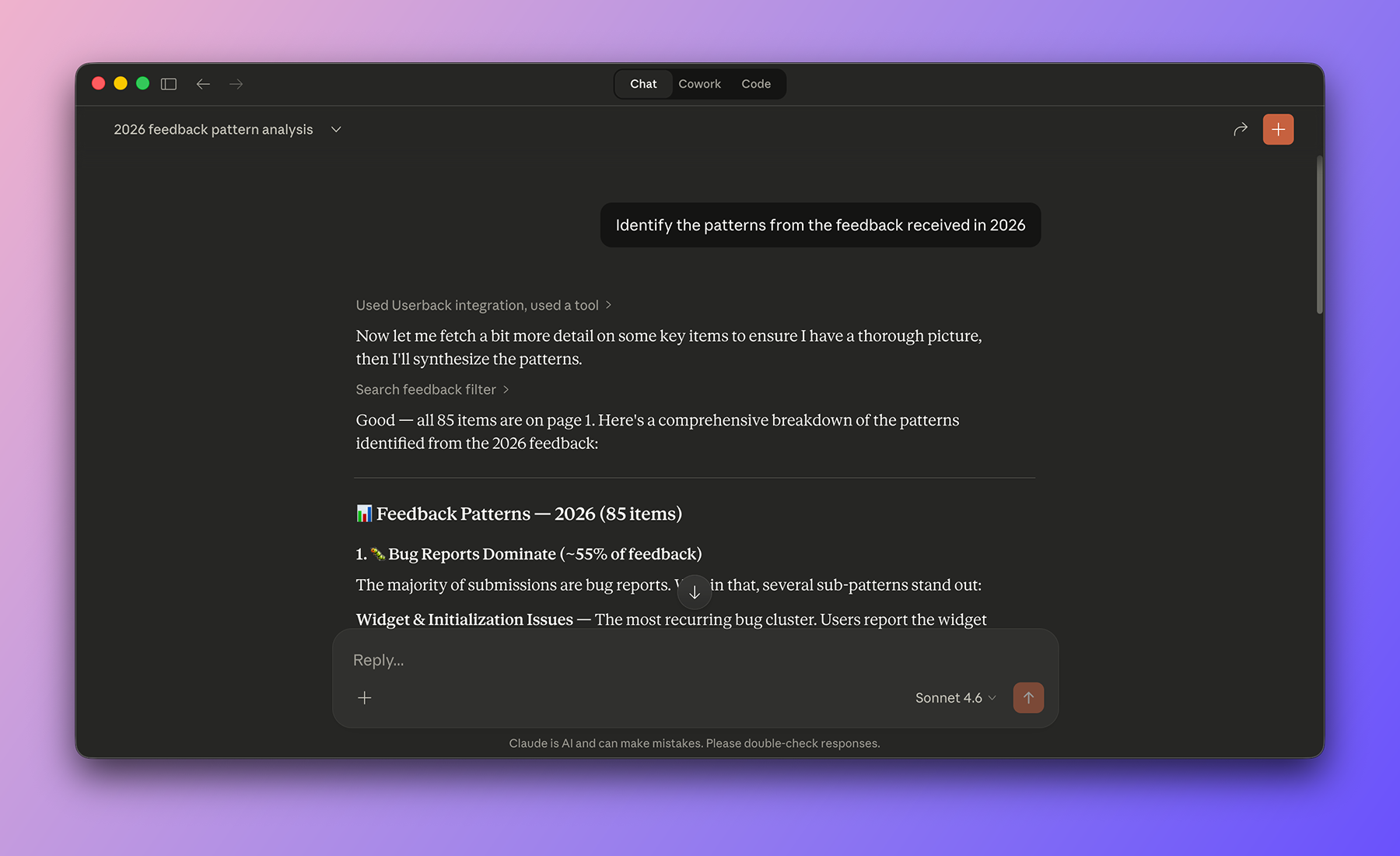
Userback MCP (Model Context Protocol) lets your developer tools and AI agents connect to Userback and automatically load relevant context (feedback details, comments, project/workflow info, console logs, and network logs) directly into your prompt flow.
As a team, you can debug faster without manually copying IDs, recreating long issue timelines, or switching constantly between tools.
Connect the Userback MCP endpoint into supported MCP clients like ChatGPT, Cursor, Claude, VS Code, Windsurf, and OpenCode, then authenticate to start using Userback context where you work.
Prerequisites
- You have access to a Userback workspace.
- You can sign in to Userback in a browser during OAuth authorization.
- You have an MCP compatible client such as ChatGPT, Claude, Cursor, VS Code, or Windsurf.
The MCP server URL for all clients is: https://mcp.userback.io/v1/mcp/
1. Configure your client
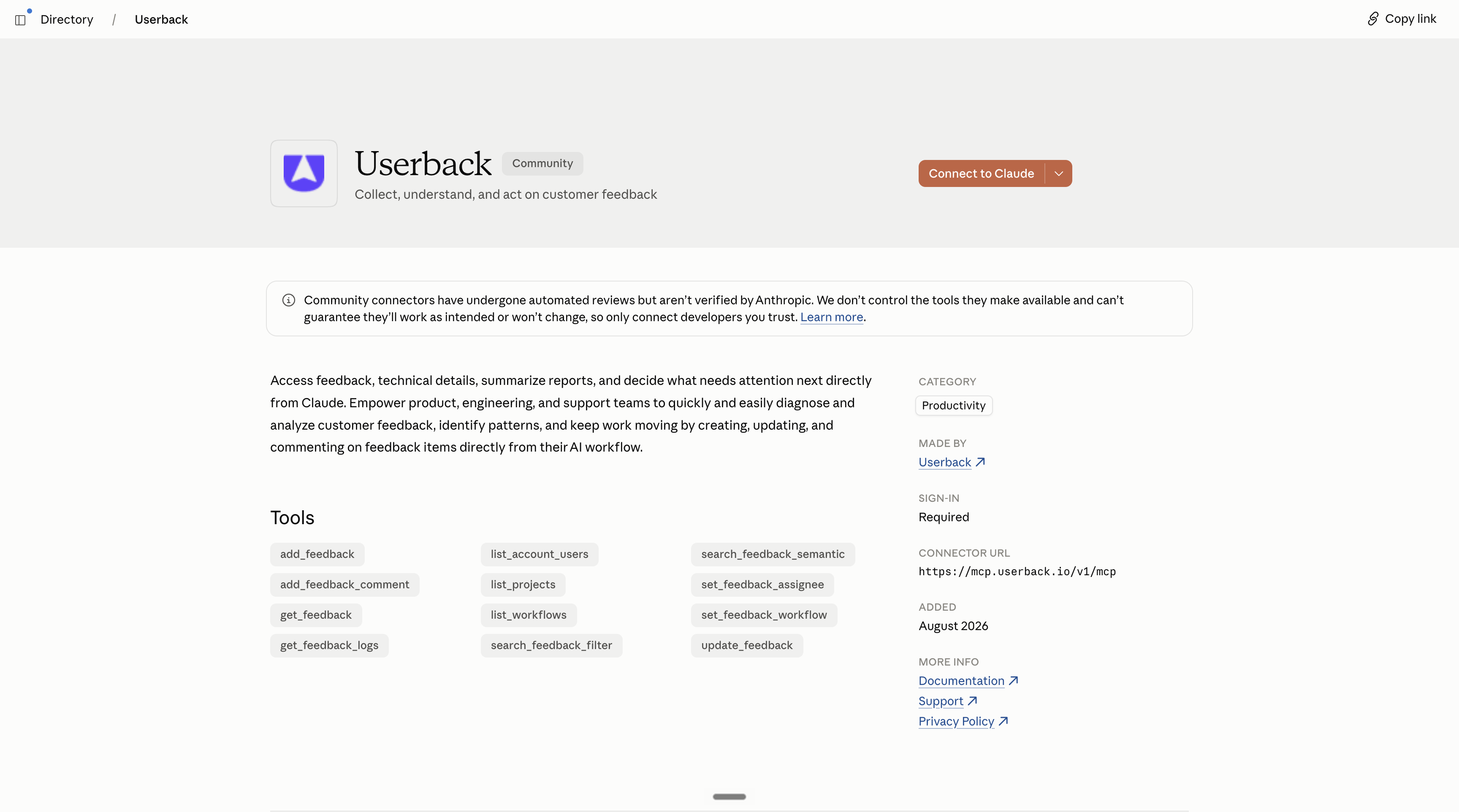
Claude
- Find Userback in the Claude directory, or simply go to https://claude.ai/directory/userback.
- Click "Connect to Claude".
- Confirm your required permissions and select "Approve".
ChatGPT
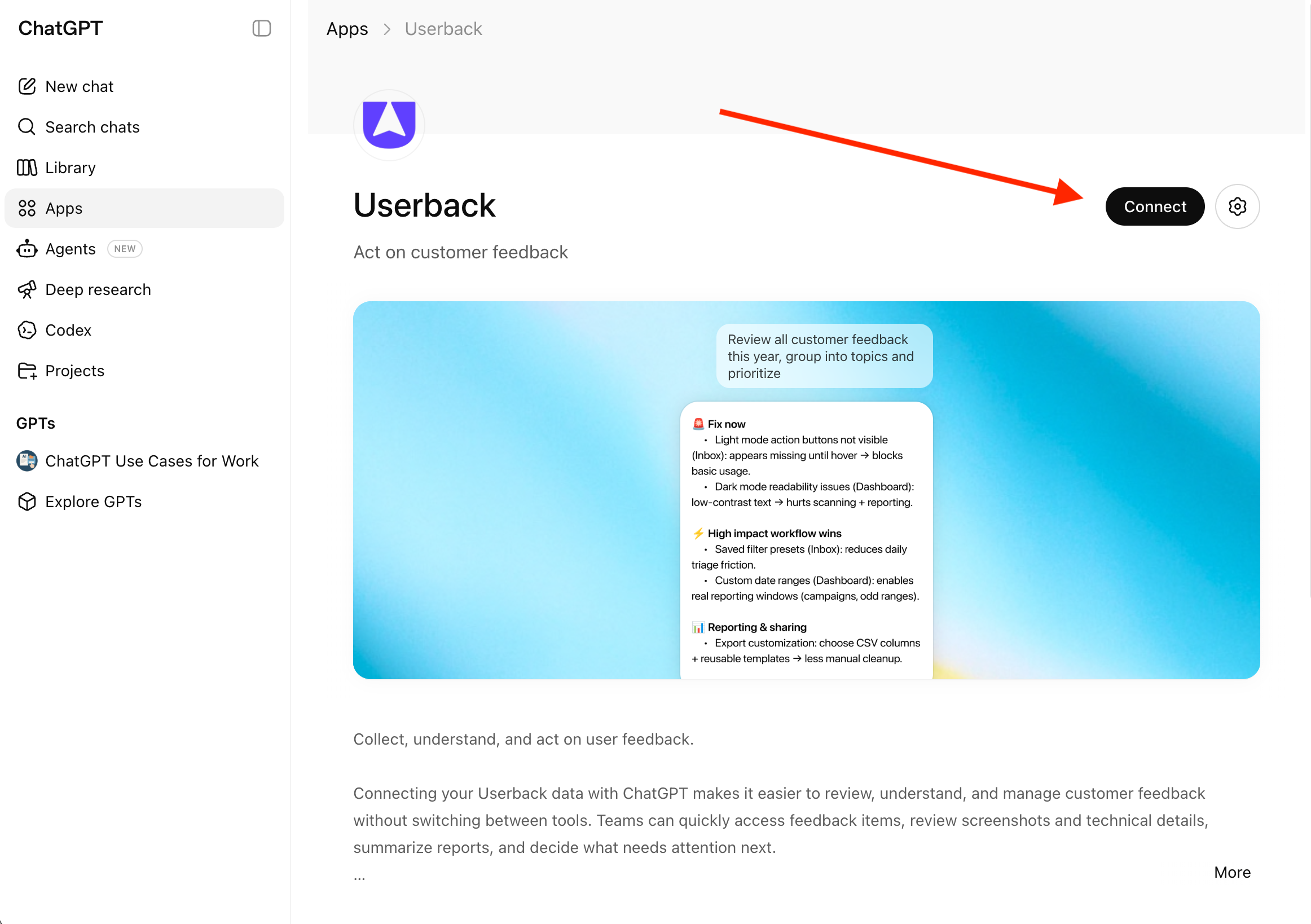
- Find Userback in the GPT store.
- Click the "Connect" button.
- Sign in to Userback and approve workspace access.
Claude Code
- In your terminal, run:
claude mcp add Userback https://mcp.userback.io/v1/mcp/ -t http -s user- Complete OAuth in your browser when prompted.
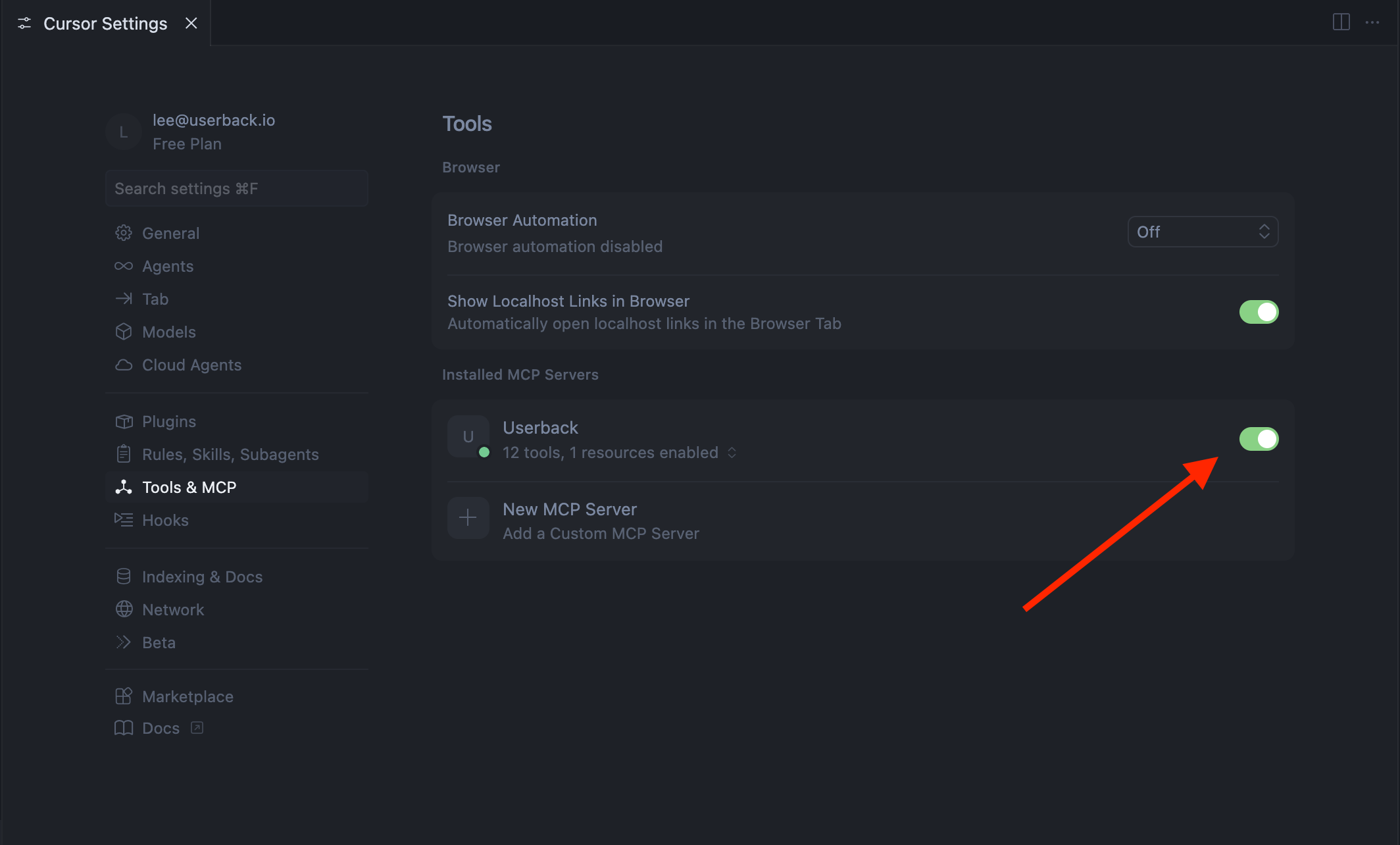
Cursor
One-click install:
Manual setup:
{
  "mcpServers": {
    "userback": {
      "url": "https://mcp.userback.io/v1/mcp/"
    }
  }
}
After saving, restart Cursor if needed, then complete OAuth authorization in your browser.
Visual Studio Code
- Open Command Palette and run
MCP: Add Server. - Choose HTTP.
- Enter:
https://mcp.userback.io/v1/mcp/- Name it
Userback.
Example config:
{
  "servers": {
    "Userback": {
      "url": "https://mcp.userback.io/v1/mcp/",
      "type": "http"
    }
  }
}
Windsurf
- Open Command Palette and run
Windsurf: MCP Marketplace. - Click the cog icon to modify mcp.json
- Enter:
{
  "mcpServers": {
    "Userback": {
      "url": "https://mcp.userback.io/v1/mcp/"
    }
  }
}
2. Start your first prompt
Once your client is connected:
-
Start a prompt in your MCP client.
-
Ask your agent to use Userback — for example: "Summarize open feedback in the App project."
-
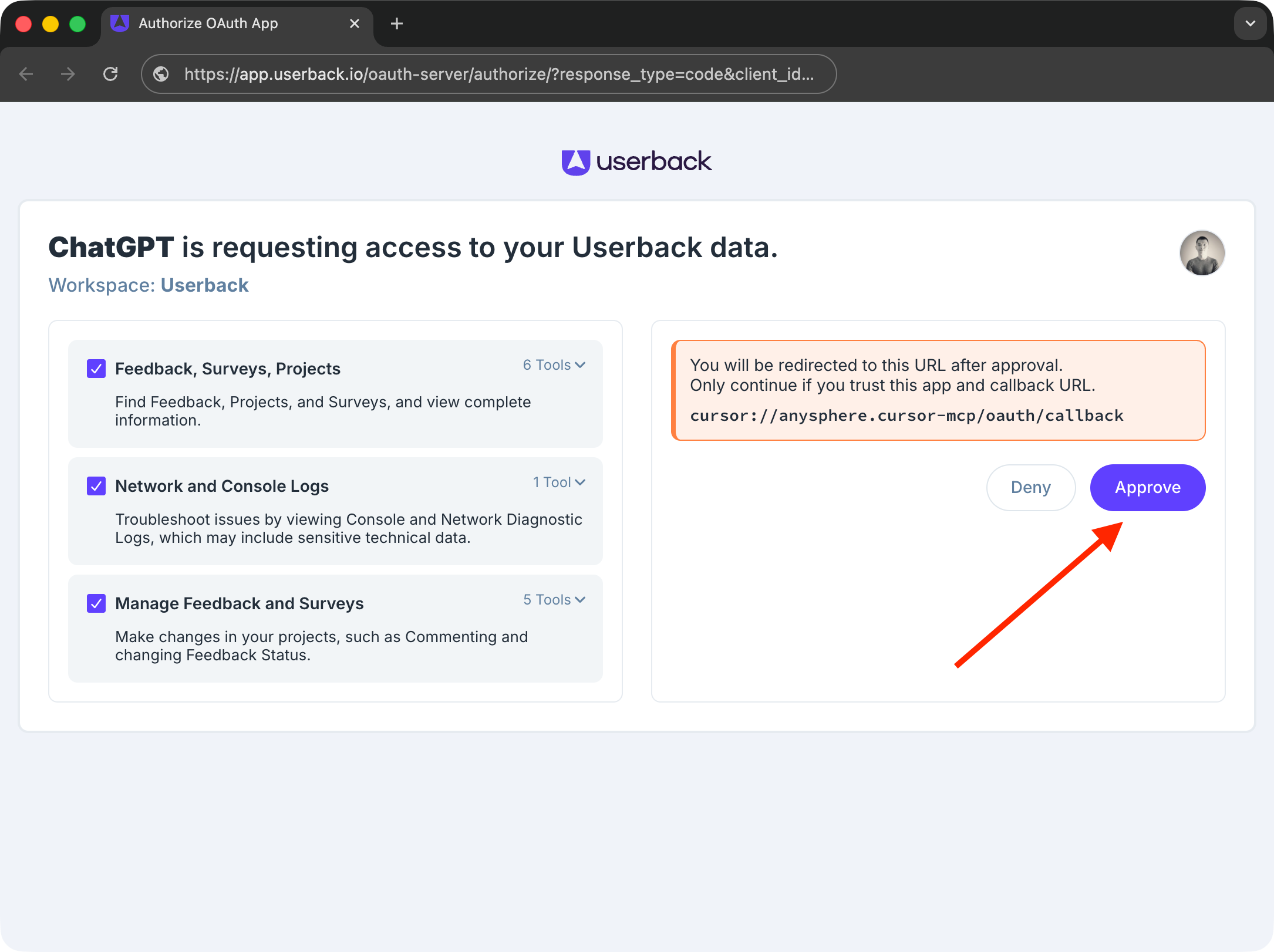
Complete OAuth authorization when prompted.
-
Approve the tool calls the agent needs to run.
-
Iterate: search → inspect → decide → update.
3. Available tools
The following tools are available when Userback MCP is connected to your client.
| Tool name | Description |
|---|---|
| add_feedback | Create a new feedback item in a project so your team can track and work on it. |
| add_feedback_comment | Add a comment or reply to an existing feedback item to share updates or ask questions. |
| get_feedback | View full details for specific feedback items, including comments, screenshots, and key context. |
| get_feedback_logs | See recent technical logs (console and network) for a feedback item to help investigate issues. |
| list_account_users | View account members (and who can be assigned work) so you can choose valid assignees. |
| list_projects | See the projects you can access, with optional workflow info for each project. |
| list_workflows | View the available status/workflow states for a specific project. |
| search_feedback_filter | Search feedback using filters (like project, assignee, priority, date, and status) with predictable, paginated results. |
| search_feedback_semantic | Find feedback by meaning (not just exact words) using natural-language search. |
| set_feedback_assignee | Assign, reassign, or unassign a feedback item. |
| set_feedback_workflow | Update a feedback item’s status/workflow step. |
| update_feedback | Edit one or more feedback fields at once (for example title, description, priority, assignee, or status). |
4. Tips
Keep these in mind when prompting your agent.
- Start with one clear goal per prompt (for example: "summarize", "prioritize", or "update").
- Be specific about what you want (project, date range, status, or theme).
- Review suggested updates before applying them.
- Keep requests focused and iterative instead of asking for everything at once.
5. Examples
Real-world prompts from different team roles.
Product Engineer — debug a bug report using feedback details and logs.
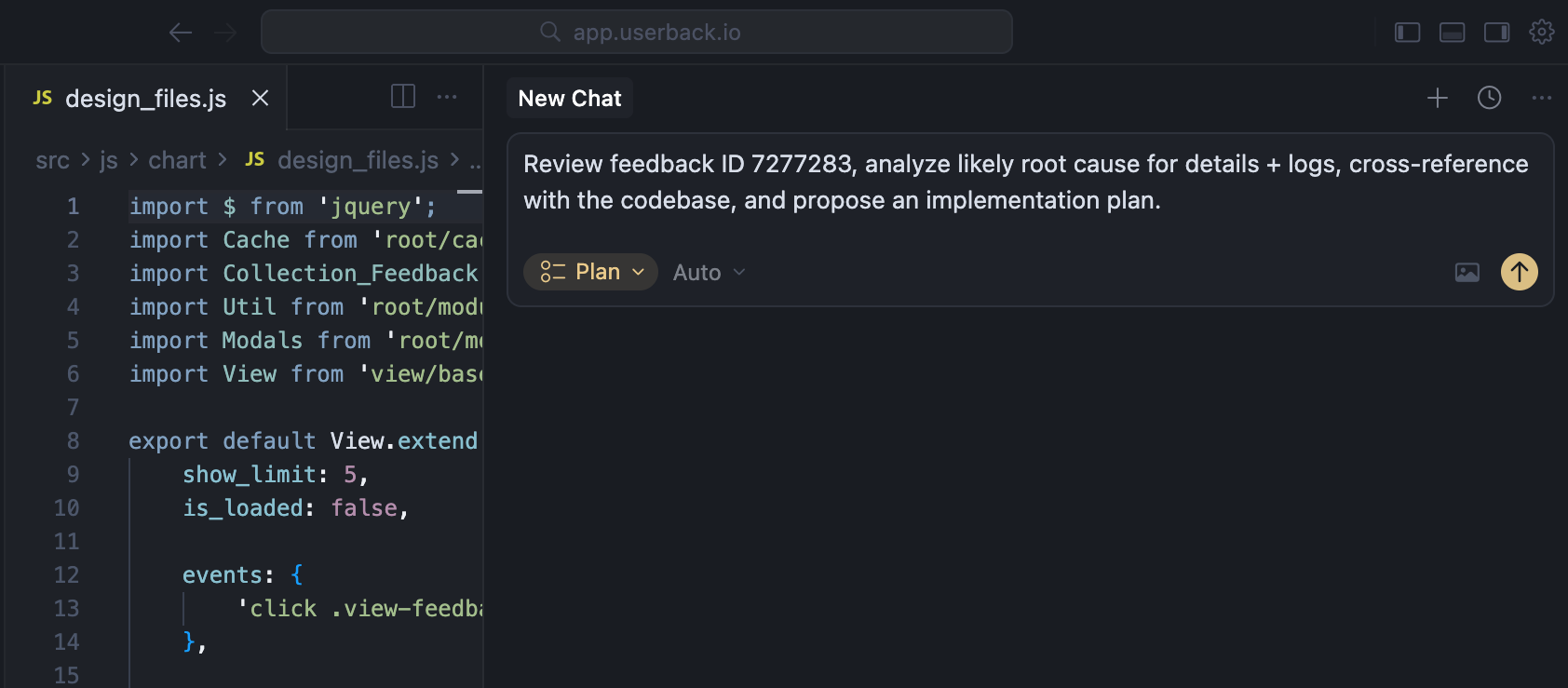
Review Userback feedback ID 12345, analyze likely root cause from details + logs, cross-reference with the codebase, and propose an implementation plan.Product Manager — identify patterns across feedback and produce actionable work packages.
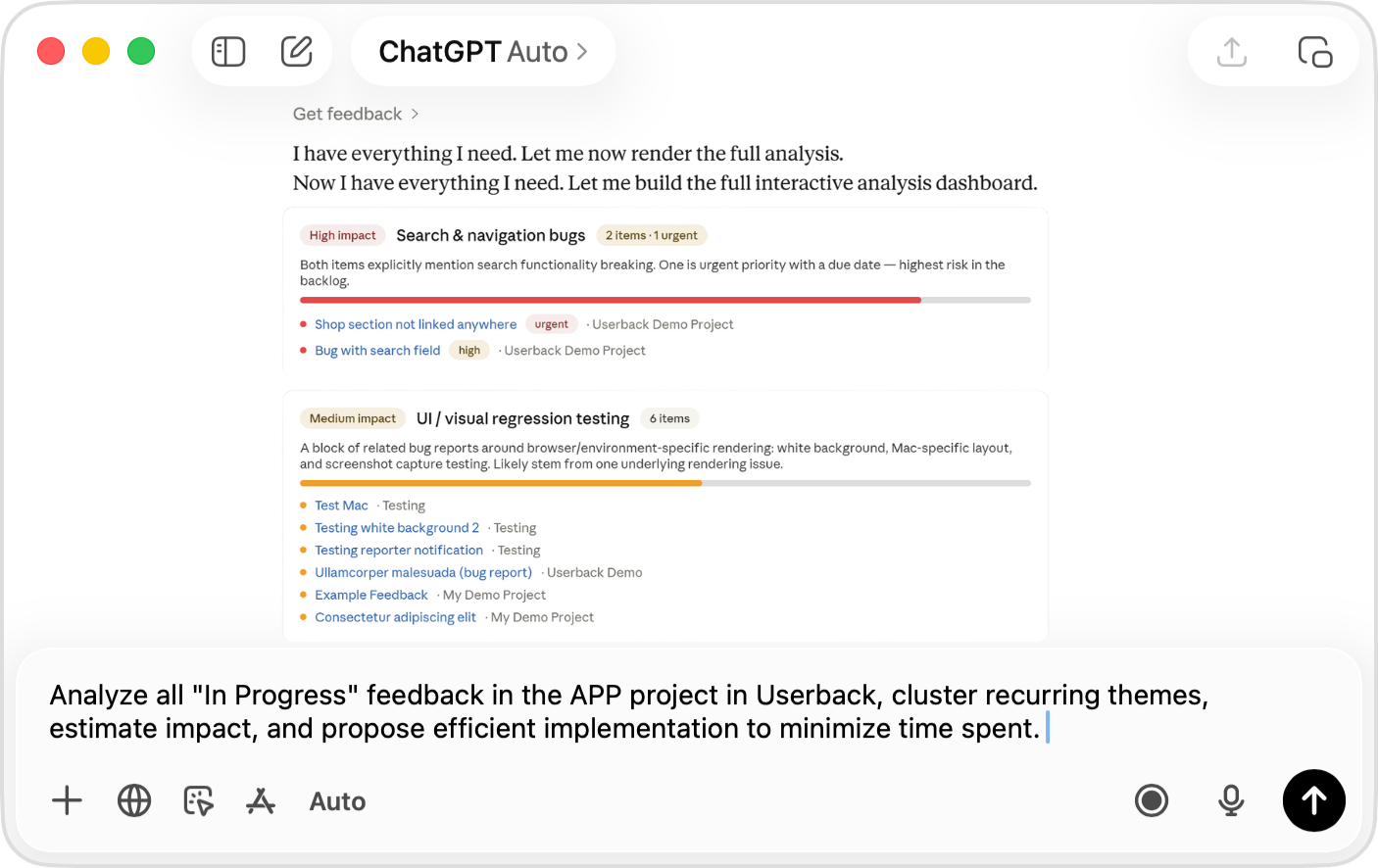
Analyze all "In Progress" feedback in the APP project in Userback, cluster recurring themes, estimate impact, and propose efficient implementation to minimize time spent.Product Designer — turn design feedback into a concrete implementation plan.
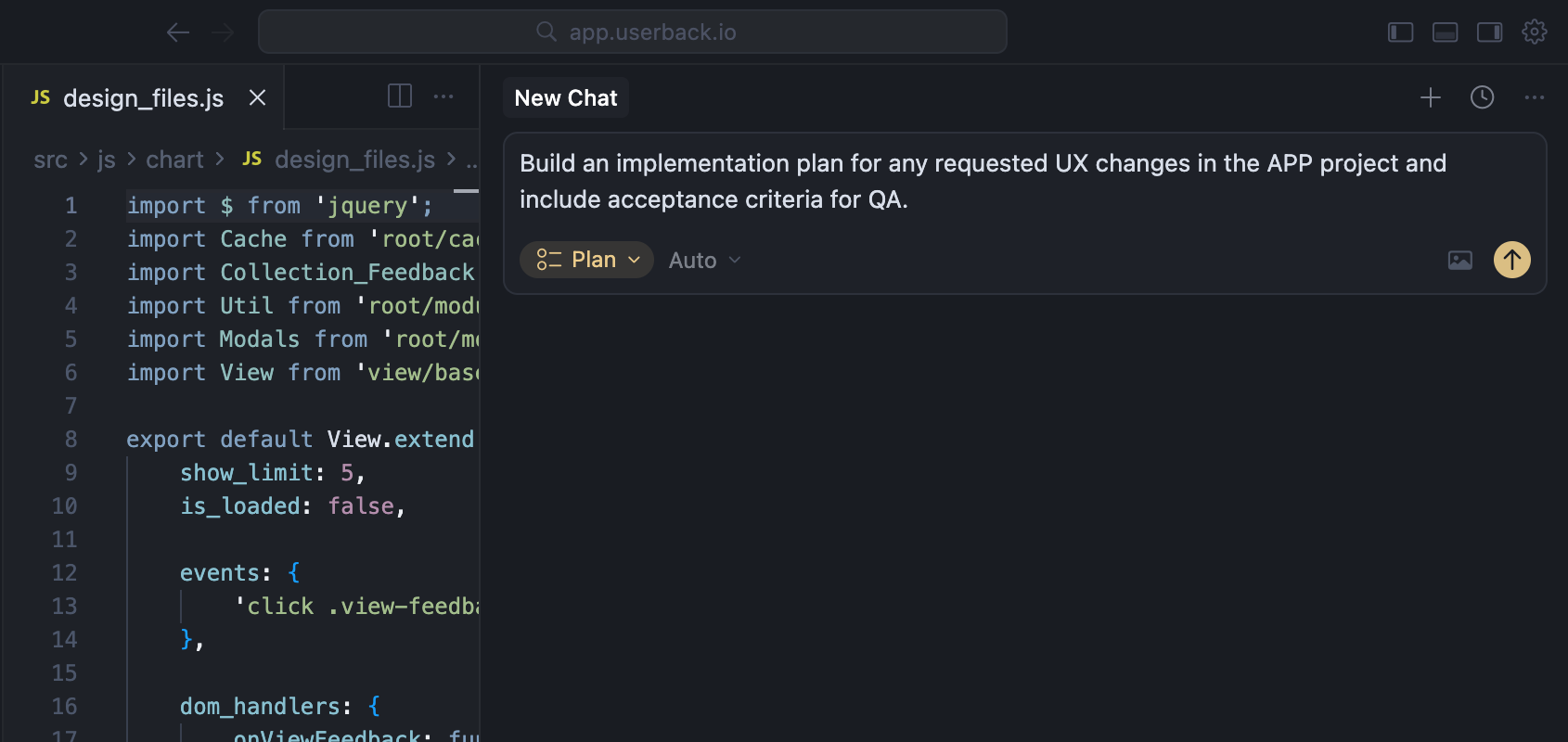
Build an implementation plan for any requested UX changes in the App project and include acceptance criteria for QA.FAQ
Do I need to change my Userback widget or snippet?
No. Userback MCP only needs your account access and OAuth authorization in your MCP client.
Can I connect other applications?
Yes, applications that support OAuth can connect using:
https://mcp.userback.io/v1/mcp/Can I paste multiple IDs or requests at once?
Yes. But we recommend one focused task at a time to reduce context-window pressure and improve output quality.
How do I review or revoke MCP access?
Userback account admins can manage and revoke access from the workspace settings page in Userback, or individually from your user profile.
Does Userback MCP expose data beyond existing permissions?
No. MCP follows your existing Userback account/workspace permissions.
Need help? Visit the Help Center or use the chat bubble on this page to contact our support team.
Updated about 2 months ago