Feedback IDs, and more improvements for Sites
Since we released Sites, we've kept working on the smaller things that make them easier to run. This round brings two kinds of improvements: ones that make managing your Sites easier, and ones that give you more control over how feedback is collected.
Feedback IDs you can actually say out loud
#48213977 → APP-42. Feedback now gets a short, readable ID that’s easy to drop into Slack, a standup or a ticket. The ID is also sent with feedback to Jira and your other integrations, so you can always trace a ticket back to the feedback it came from.
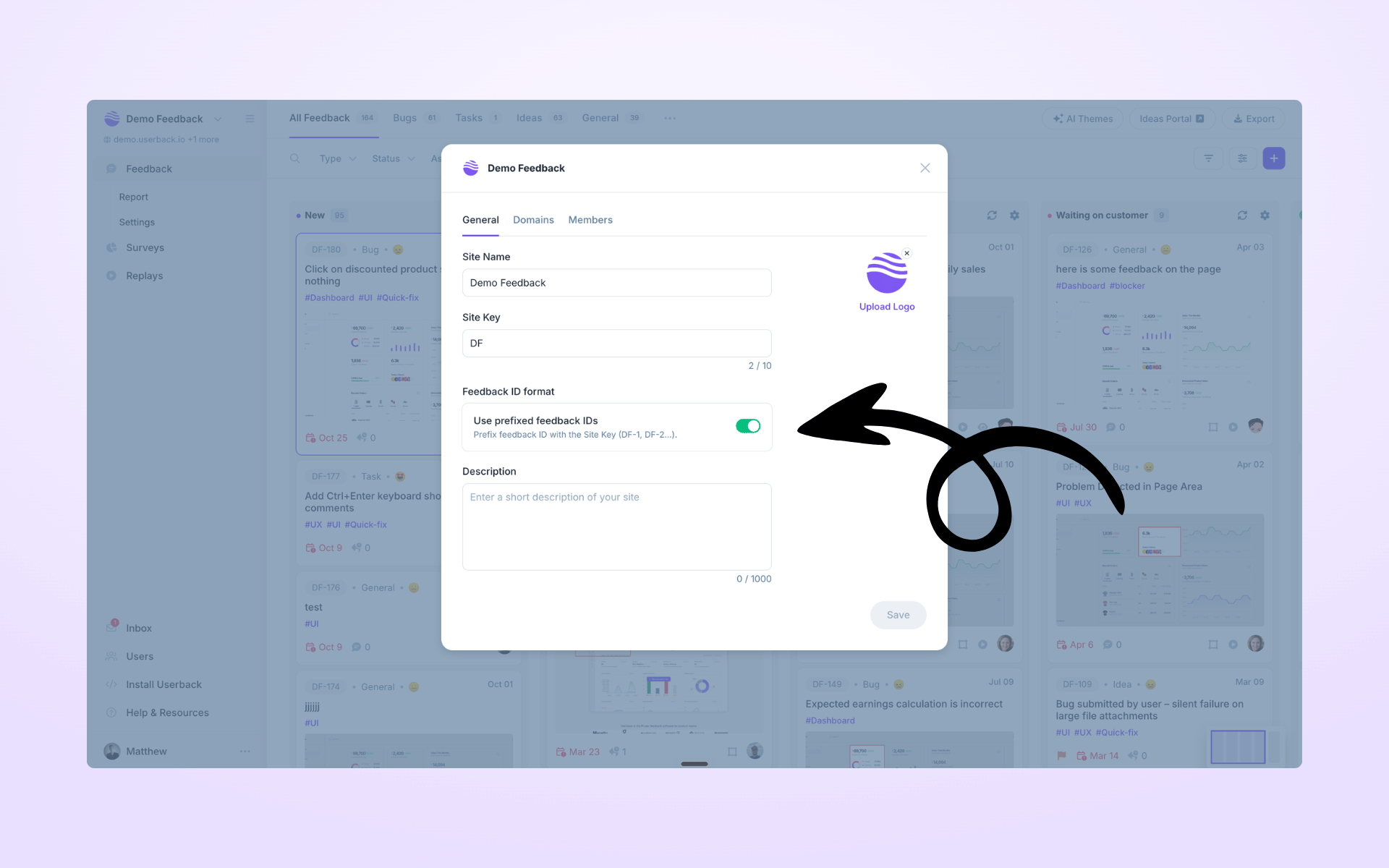
- Turn on Use prefixed feedback IDs in Site Settings → General
- The ID now appears prominently on each feedback item, and you can link to it from anywhere
- The prefix comes from your Site Key, also in Site Settings → General
- New Sites have prefixed IDs on by default
Existing SitesNothing changes unless you want it to. Your existing feedback IDs and links keep working. To switch to prefixed IDs, open Site Settings and turn the option on.
Copy Widget Settings
Setting up a new Site no longer means rebuilding your widget from scratch. Copy your widget settings from a Site you've already set up. It's especially handy if you create a lot of Sites, like an agency with a Site for each client.
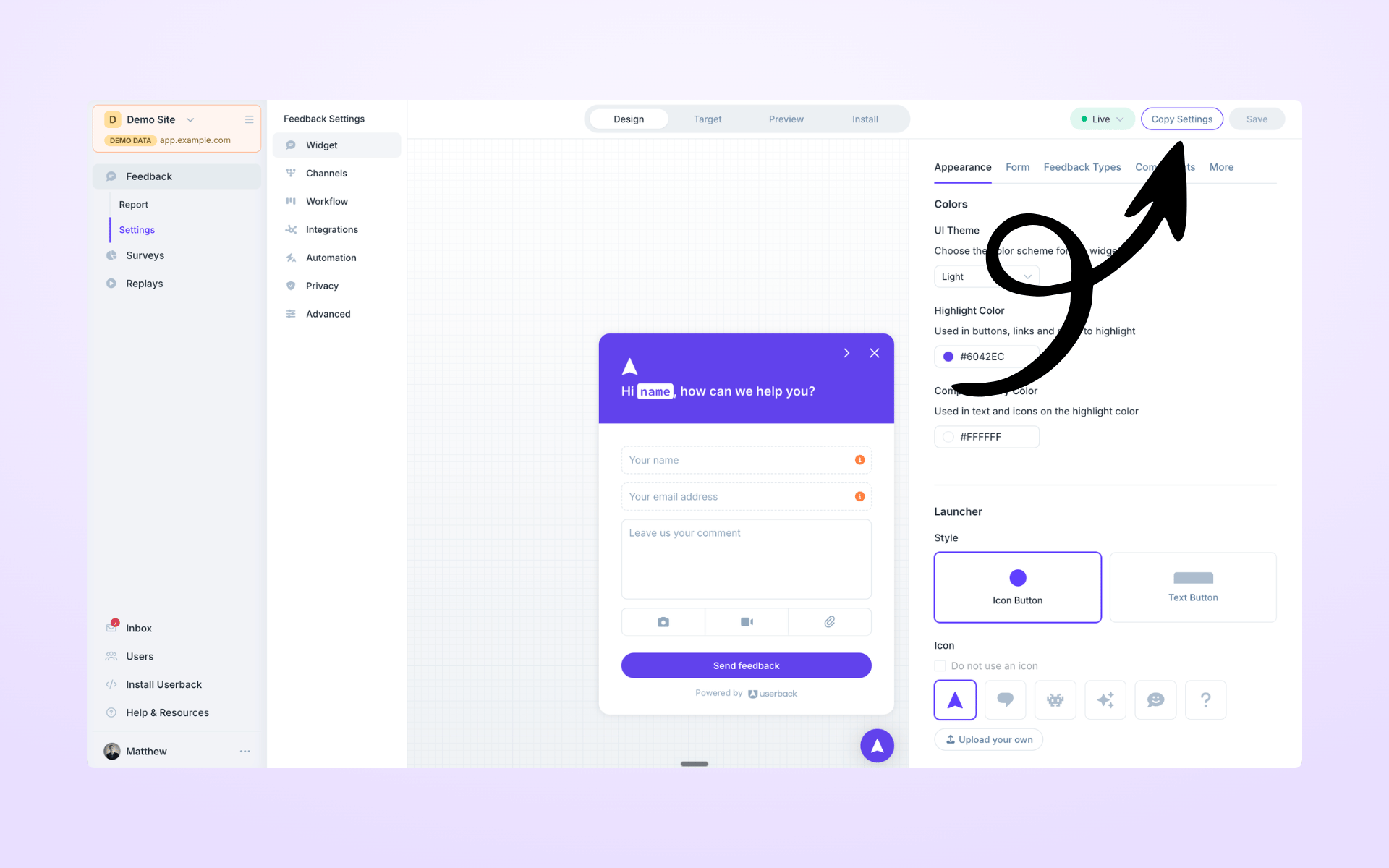
- Create your new Site
- Open its Widget Settings
- Click on the Copy Settings button and choose the site to copy from
This new feature copies your widget settings only. Integrations and other Site settings are not copied and need to be setup separately.
See Open Feedback on the Sites Page
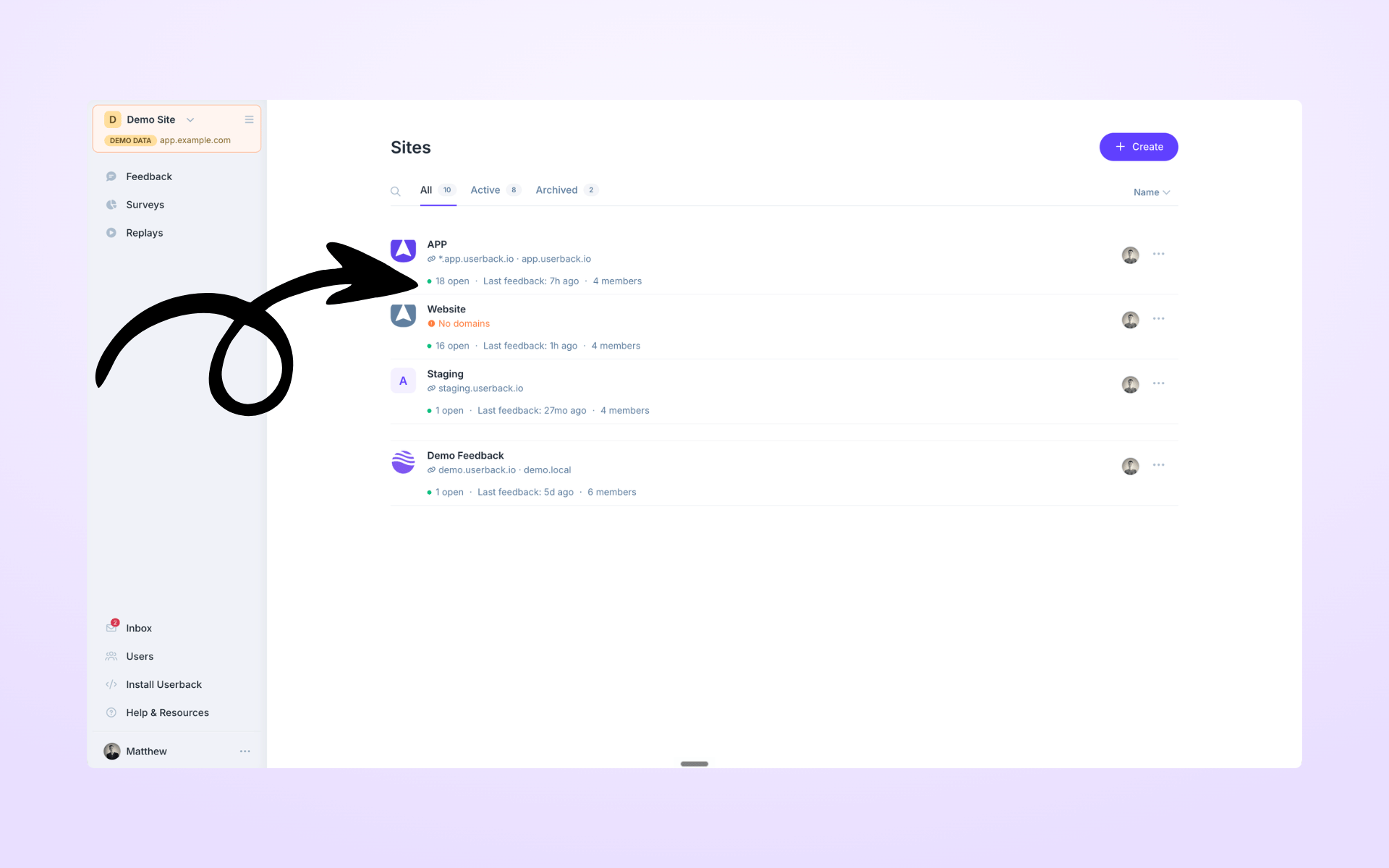
Your Sites list now shows how much feedback is sitting in Open for each site, so you can see which one needs your attention first. Sort the list by open feedback, in either direction, to jump into those sites faster.
Target Surveys by query string and hash
Page targeting can now match the full URL, including everything after ? and #. Show a survey only to visitors from your newsletter, on a specific tab, or at a step in a flow, even when the page path doesn’t change.
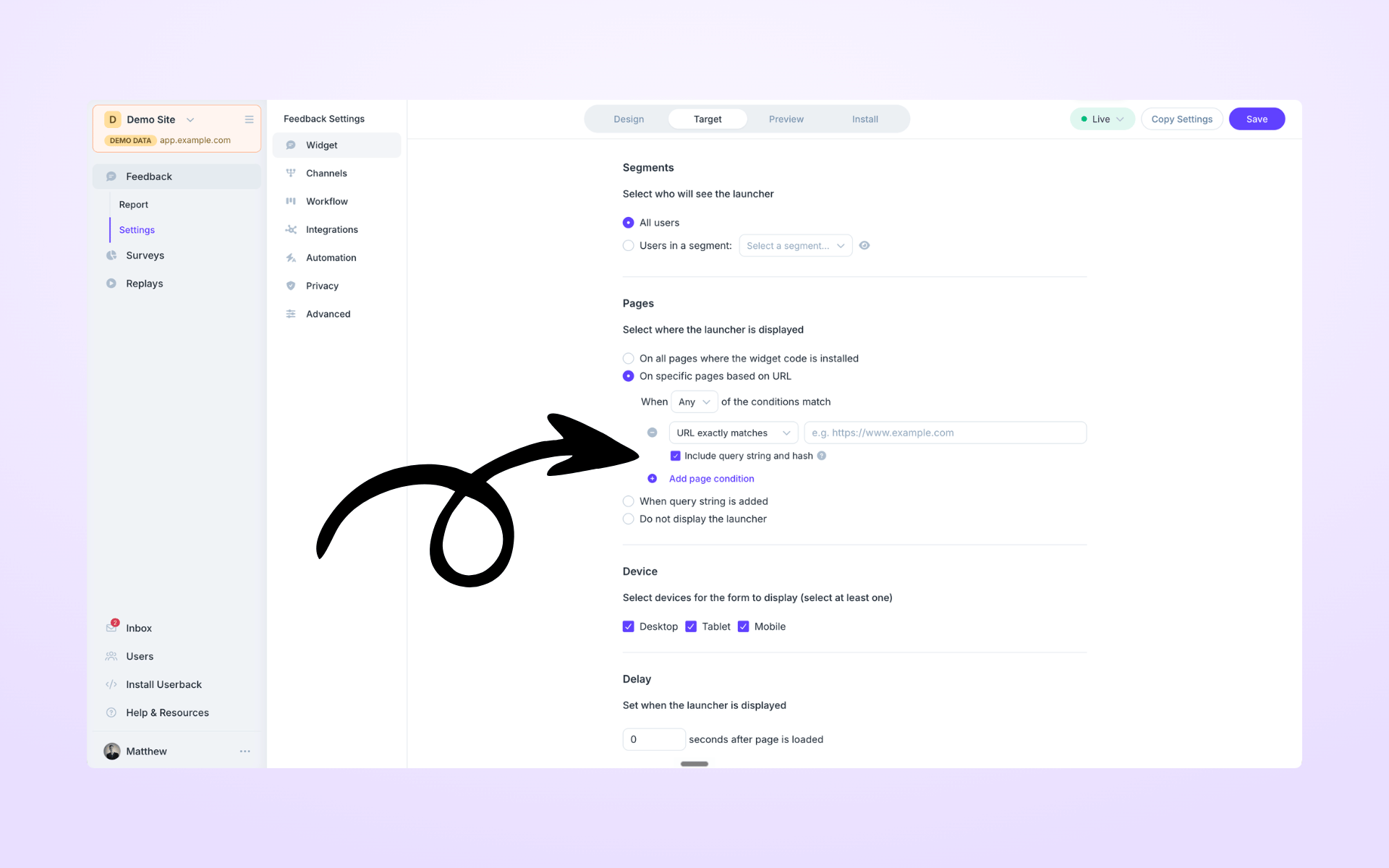
- In Target → Pages, add a URL condition and tick Include query string and hash
- Use URL contains for parameters, so
?utm_source=newsletterstill matches when other parameters are present - Works for the feedback widget and surveys
- Great for single page apps that use # routing
Examples:
utm_source=newsletterto survey campaign traffic#billingto ask about a single tabstep=checkoutto catch people mid-flow
Hide the Description Field
You now have more control over how reporters give you feedback. The description field on your widget form used to be required, and it always had to be there. Now you can make it optional, or remove it completely.
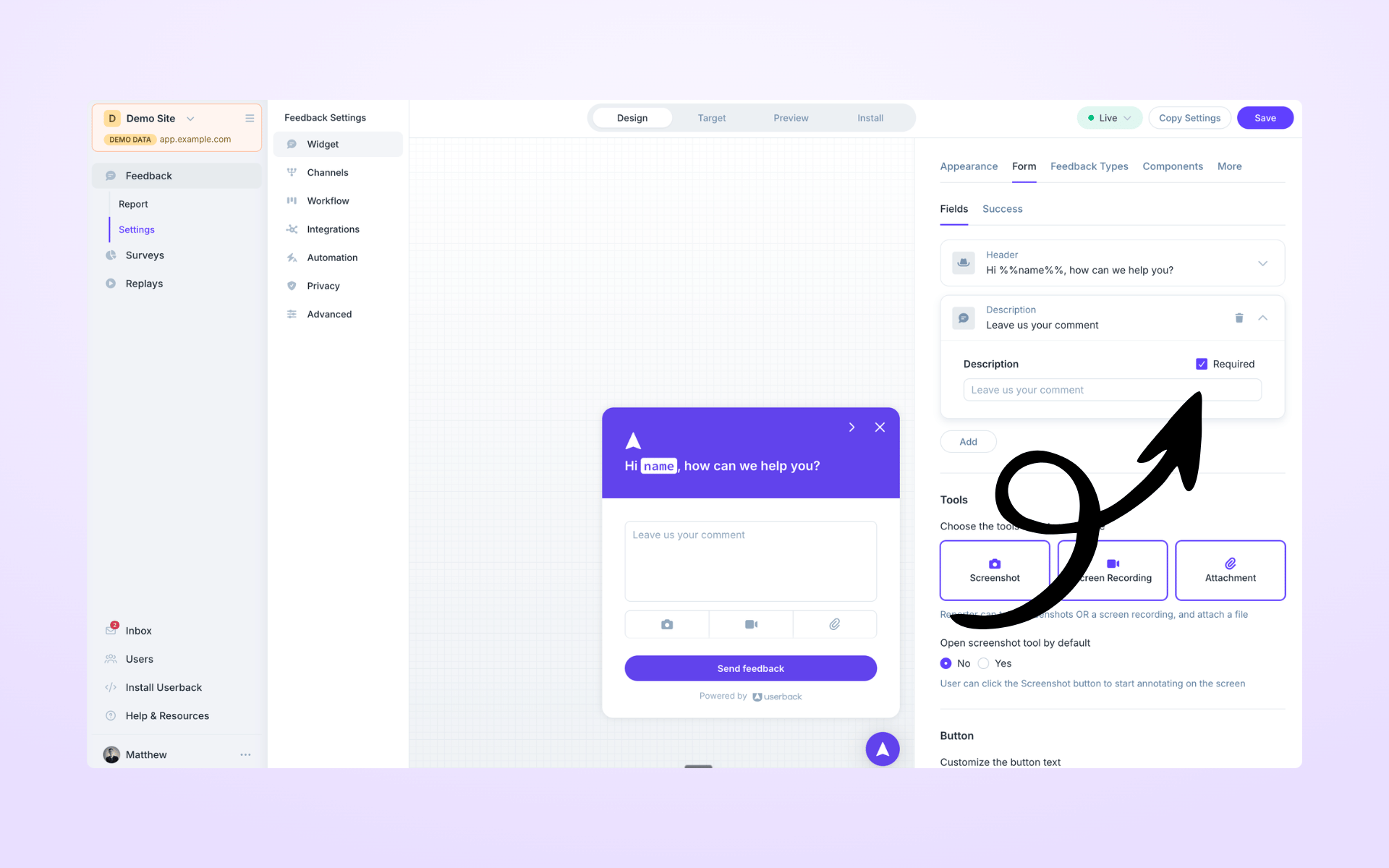
Removing it is worth considering if most of your reporters leave pinned comments in the annotation tools. Without the extra box they don't have to say everything twice, so they can submit faster, and their pinned comments still appear as comments on the feedback item.
Send Comments Faster
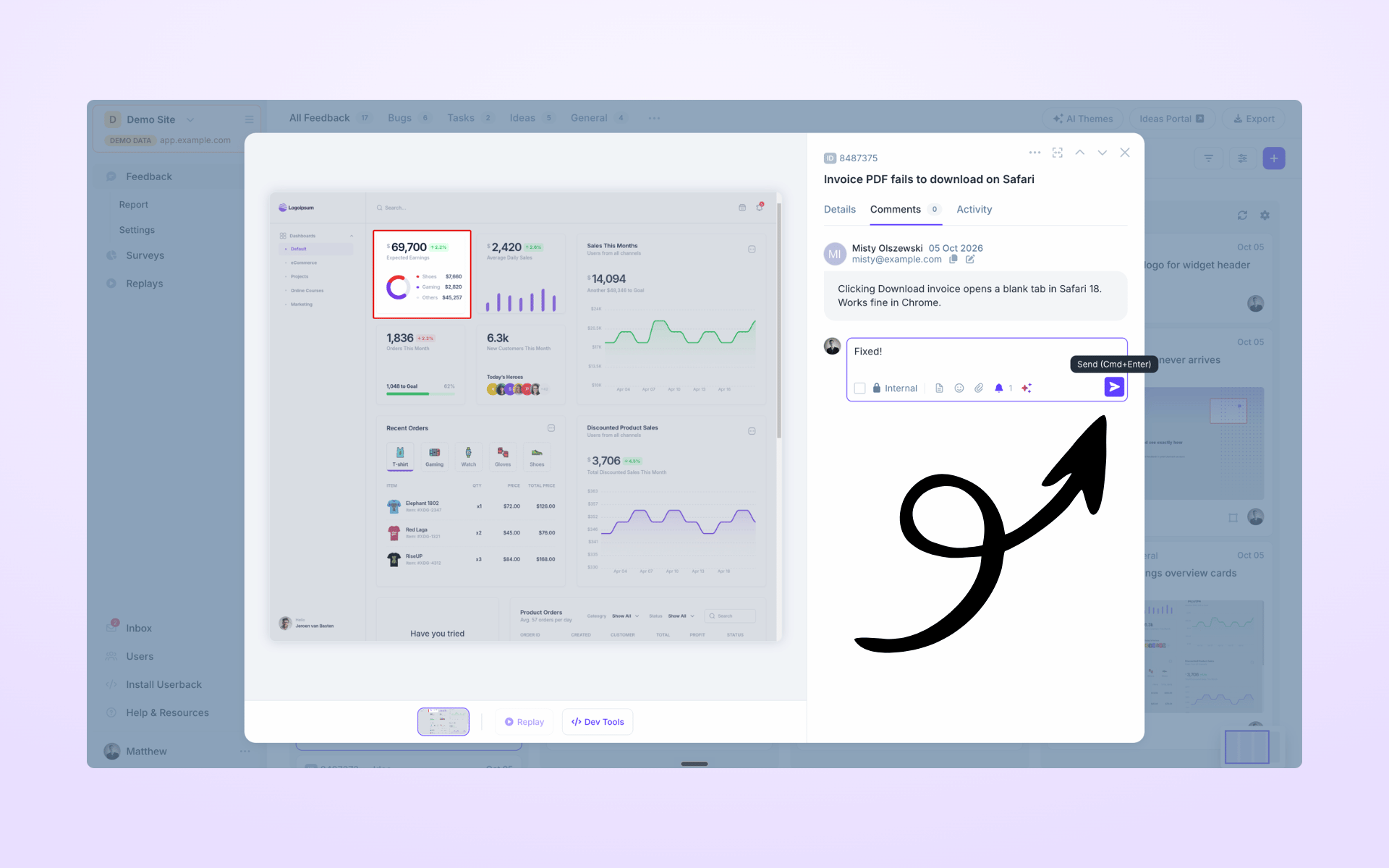
One more small one. You can now send a comment on a feedback item with Ctrl+Enter (Cmd+Enter on Mac). It saves reaching for the mouse, and the time adds up if you reply to a lot of feedback each day.