

Added
🌙 Dark Mode & Custom Display Settings Are Here
February 1st, 2026
Userback now lets you customize Display settings across your entire feedback experience.
You can choose how Userback appears across the UI, Feedback Widget, Surveys, and Ideas Portal, so it better matches your product and your users’ preferences.
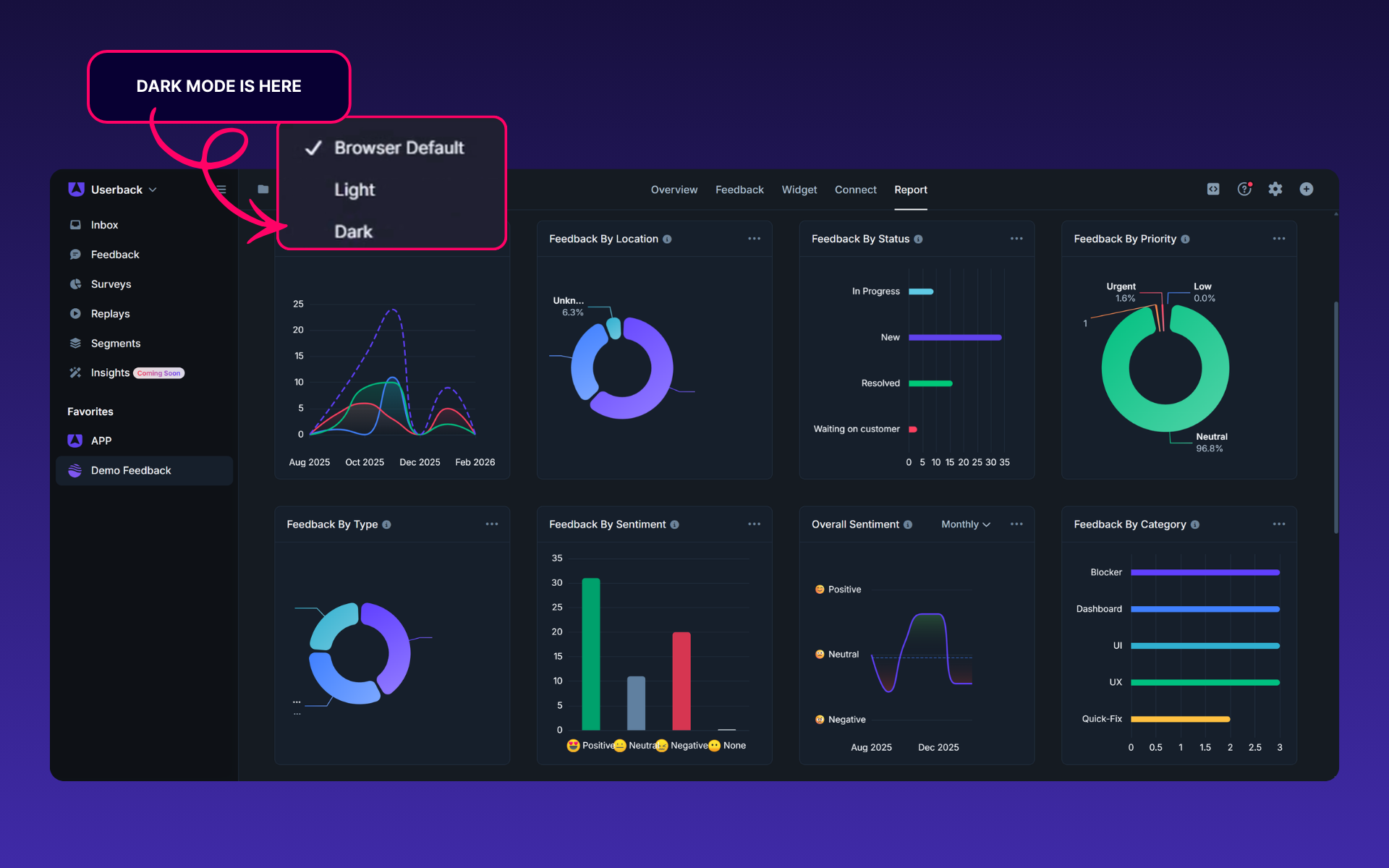
Key Features:
- Dark Mode & Custom Display Settings: Choose how Userback looks across the platform with Dark, Light, or Browser Default themes.
- Flexible Display Settings for Feedback Components: Control the colour scheme for your end users by setting each component (UI, Widget, Surveys, and Portal) independently.
- Branding Support (Business plan and above): Upload separate logos for Light and Dark mode to keep your branding consistent in every theme.
How it Works:
- Set the colour theme for your Userback account: Go to Profile settings and choose between Browser Default, Light, or Dark mode.
- Customize the colour scheme for each component: Open the settings for your Feedback Widget, Surveys, and Ideas Portal, and select your preferred display option for each one.
- Optional branding (Business plan and above): Upload separate Light and Dark mode logos to keep your branding consistent across all themes.
Try It Today!
For step-by-step instructions, screenshots, and tips, see our full help article here.